Turning WSO2 Identity Server's SCIM 2.0 APIs into a governed MCP server with the WSO2 AI Gateway
 Photo by Árpád Czapp on Unsplash
TL;DR: How to expose the SCIM 2.0 APIs of WSO2 Identity Server 7.3 as an MCP server, secure it with Identity Server’s own tokens at the WSO2 AI Gateway, and let an MCP client like Claude Desktop manage users and groups.
In this guide, we expose the SCIM 2.0 APIs of WSO2 Identity Server as an MCP server, and serve that MCP server through the WSO2 AI Gateway. The gateway accepts only callers holding Identity Server tokens, and lets each caller use only the tools its token’s scopes allow. At the end, we let Claude Desktop manage users and groups in IS through the MCP.
- WSO2 Identity Server (IS) is WSO2’s open-source identity and access management server. It stores the users and groups, and issues the OAuth2 tokens used in this guide.
- SCIM 2.0 (System for Cross-domain Identity Management) is the standard REST API for managing users and groups. IS serves it under
/scim2. - WSO2 AI Gateway is a single control plane for AI traffic, covering both LLM consumption (outbound) and MCP tool exposure (inbound). This guide uses the inbound side: the gateway sits in front of the MCP server and applies authentication and authorization policies to each request.
- Claude Desktop is Anthropic’s desktop app for Claude. It can be used as an MCP client.
Why
If done securely, identity administration is a good fit for an AI agent.
“Create accounts for Liam and Olivia, put them in Support with Emma, and mark Liam as a gold-tier EU customer” is one sentence to tell your agent, but half a dozen SCIM calls with ids and JSON patch bodies.
Identity Server already has the REST APIs (SCIM 2.0 for users, groups, roles and more), and agents speak the Model Context Protocol (MCP), an open protocol that lets AI applications discover and call tools exposed by an MCP server. This setup meets two requirements:
- Turn those REST APIs into MCP tools without writing a custom server.
- Govern access: allow only callers holding Identity Server tokens, and only the tools those tokens’ scopes allow.
Overview
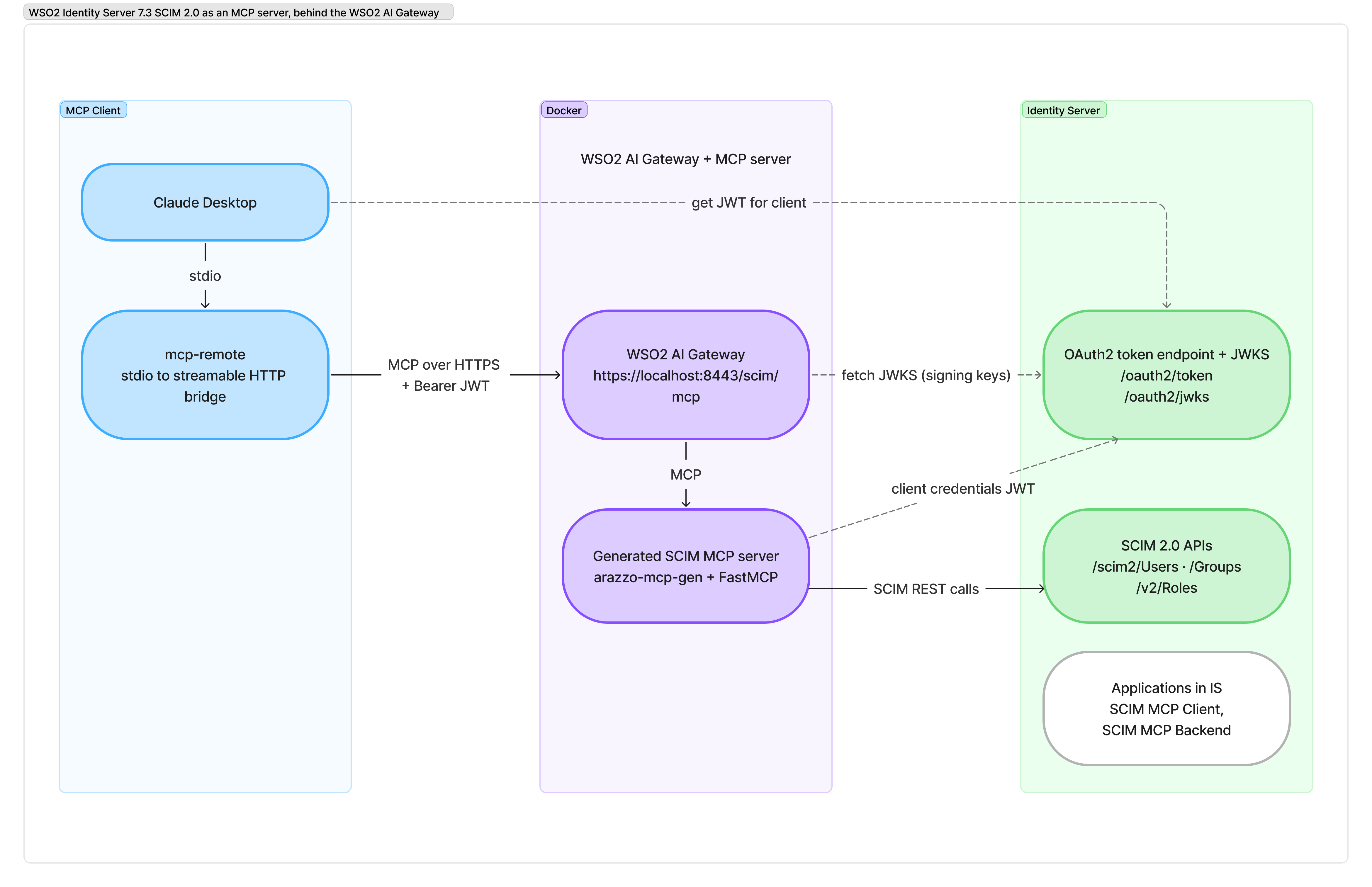
There are two identities involved in the design:
- The client (Claude Desktop or your AI assistant) gets a token from IS. The gateway validates it and verifies its scopes per tool.
- The MCP server calls Identity Server with its own SCIM MCP Backend credentials (a client-credentials token).
Per-client authorization therefore happens at the gateway, not in Identity Server.
Security model
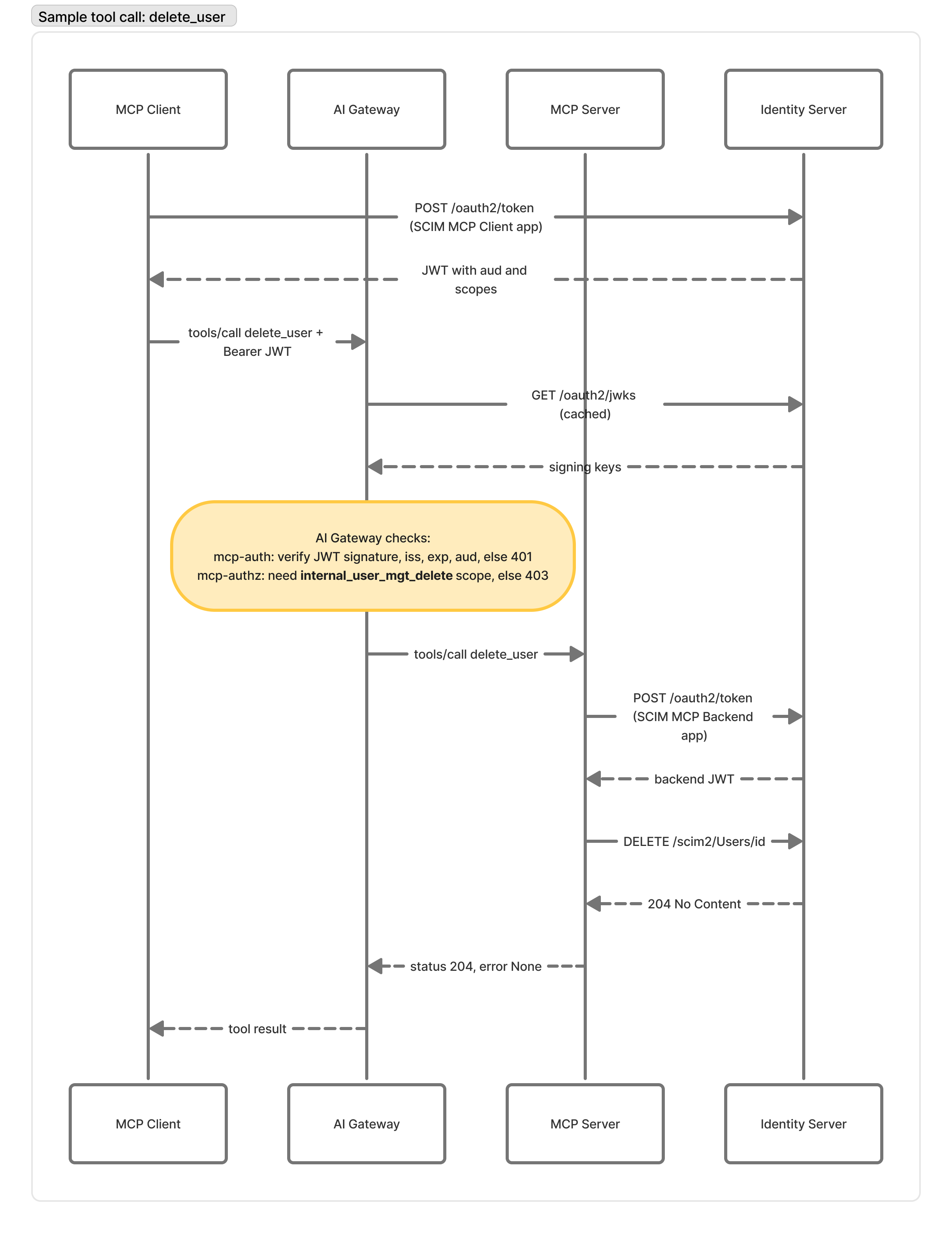
The gateway enforces access with two policies: mcp-auth validates the caller’s token, and mcp-authz checks that the token has the scope each tool requires. Here is one call, delete_user, end to end. Note the two different tokens:
| Concern | Where it’s handled | How |
|---|---|---|
| Who can connect | AI Gateway, mcp-auth policy |
JWT from Identity Server: signature (JWKS), issuer, expiry, audience = the SCIM MCP Client app |
| Which tools the caller may use | AI Gateway, mcp-authz policy |
One rule per tool, requiring the same IS scope that the underlying SCIM operation needs |
| Keeping the caller’s credential away from the MCP server | AI Gateway, mcp-auth policy |
forwardToken: false (the default) |
| What Identity Server enforces | Identity Server | The backend app’s scopes. Every call arrives as this application |
| What the LLM sees | The MCP server’s tool definitions | Each tool returns only the fields it maps, e.g. create_agent never returns the agent’s generated password |
Steps 5 and 6 configure the two gateway policies, and Step 3 defines what each tool returns.
The repository, wso2is-scim2-mcp-ai-gateway, has the specs and configuration used here.

Versions used
| Component | Version |
|---|---|
| WSO2 Identity Server | 7.3.0 |
| WSO2 AI Gateway | 2026.09.24 |
| arazzo-mcp-gen / arazzo-runner | 0.1.0 / 0.9.6 (FastMCP 4.1.0 in the generated image) |
| Claude Desktop / mcp-remote | 2.31226.1 / 0.14.3 |
| Container runtime | Rancher Desktop (moby), Docker 29.5 |
Prerequisites
- Docker with Compose.
- JDK 21 or newer for Identity Server 7.3.
- Node.js for MCP Inspector, a browser-based tool from the MCP project for connecting to an MCP server, listing its tools and calling them.
Step 1: Run Identity Server 7.3 locally
Download the IS 7.3.0 pack from here and unzip it.
sh bin/wso2server.sh start # logs: repository/logs/wso2carbon.log
Everything else in this setup runs in containers, so first confirm that a container can reach IS on the host:
docker run --rm curlimages/curl -sk -o /dev/null -w '%{http_code}\n' https://host.docker.internal:9443/oauth2/jwks
# 200
host.docker.internal is a special hostname that resolves to the host machine from inside a container. Inside a container, localhost is the container itself, so containers in this guide reach IS at host.docker.internal:9443. Docker Desktop and Rancher Desktop provide it by default; on Linux with Docker Engine, add --add-host=host.docker.internal:host-gateway to docker run.
Step 2: Applications and scopes in Identity Server
For the two identities, create two machine-to-machine (M2M) applications in the Console (Applications → New Application → M2M Application):
| Application | Who uses it | Why |
|---|---|---|
SCIM MCP Client |
MCP clients (MCP Inspector, Claude) | Client tokens that are validated by the AI Gateway |
SCIM MCP Backend |
The generated MCP server | The service credential used to call the SCIM APIs |
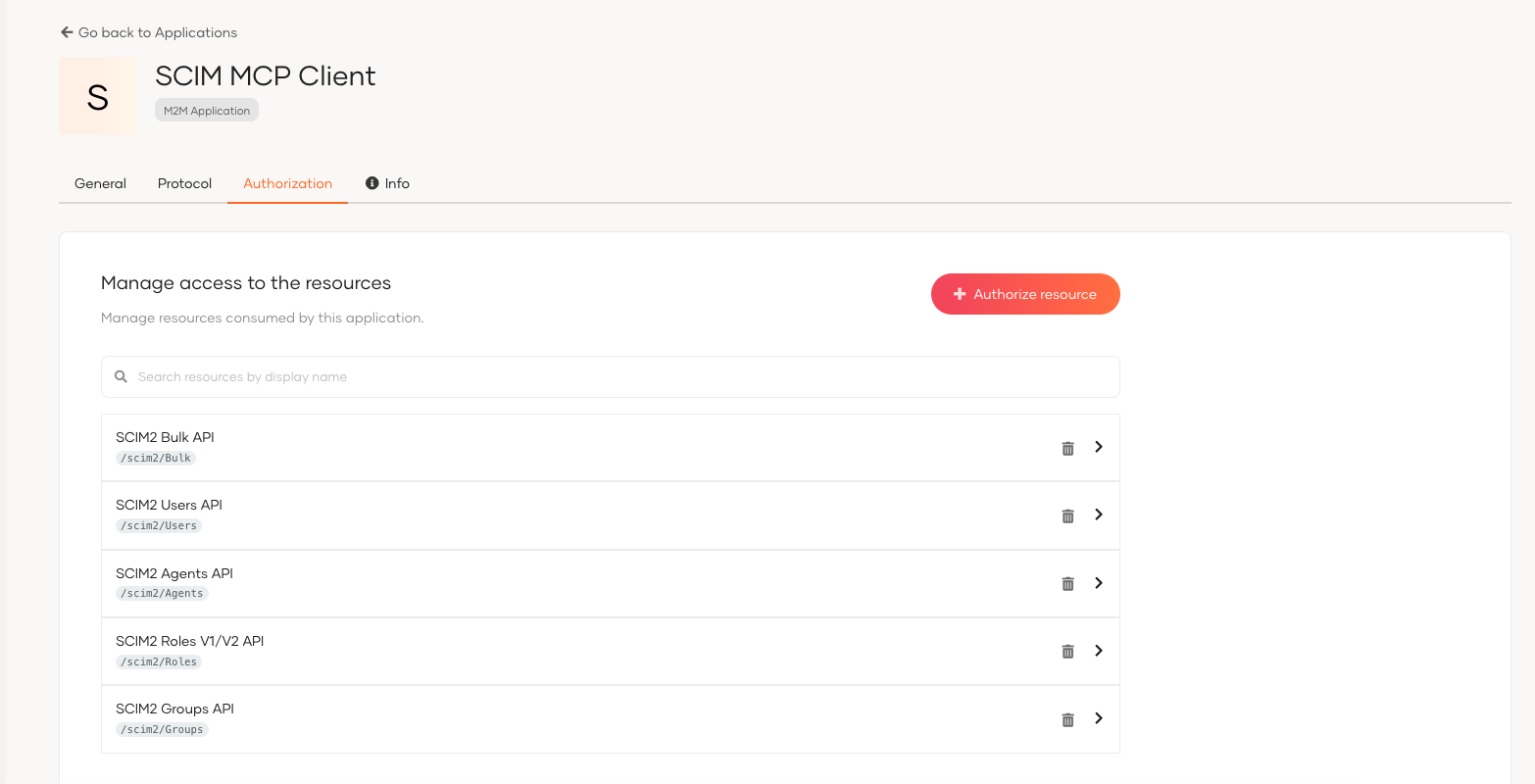
On each app’s Authorization tab (Authorize resource), authorize the five SCIM2 API resources with all of their scopes: Users, Groups, Roles V1/V2, Bulk and Agents:
Each SCIM2 API is listed twice: /scim2/... for the root organization and /o/scim2/... for sub-organizations. Pick the /scim2/... one.
On the Protocol tab, set the access token type to JWT. The gateway validates tokens locally against IS’s public keys from the JWKS endpoint.
A client-credentials token can then ask for the scopes it needs:
curl -sk -u "$CLIENT_ID:$CLIENT_SECRET" https://localhost:9443/oauth2/token \
  -d grant_type=client_credentials \
  --data-urlencode "scope=internal_user_mgt_list internal_user_mgt_view"
These scopes are self-descriptive. A read-only token can list users, but creating one is refused:
Eg:
{"schemas":["urn:ietf:params:scim:api:messages:2.0:Error"],
 "detail":"Operation is not permitted. You do not have permissions to make this request.","status":403}
Step 3: From OpenAPI + Arazzo to an MCP server
The self hosted AI Gateway doesn’t turn REST into MCP by itself; it governs MCP servers. The provided tool for creating an MCP server from an existing REST API is arazzo-mcp-gen, a WSO2 command-line tool. Arazzo is an OpenAPI Initiative specification for describing workflows: sequences of calls to operations defined in OpenAPI files. You give arazzo-mcp-gen OpenAPI specs plus an Arazzo file, and it builds a Dockerised Python MCP server. Each Arazzo workflow becomes one MCP tool.
Modifying the IS OpenAPI specs
The generated server runs the workflows with arazzo-runner, a library that executes Arazzo workflows and reads authentication and server details straight from the OpenAPI files. Before generating, make three changes to the IS OpenAPI specs. The modified specs are in the repository’s arazzo/ folder, with a comment on each change:
- OAuth2 flow. The specs declare an
authorizationCodeflow. For a machine-to-machine backend, it needs to be changed toclientCredentialswithtokenUrl: https://<is-host>:9443/oauth2/token. The runner then fetches tokens itself, usingSCIM_OAUTH2_CLIENT_IDandSCIM_OAUTH2_CLIENT_SECRET.arazzo-runner show-env-mappings <file>prints these variable names. - Scopes. The Arazzo runner requests only the scopes listed under the spec’s
securityrequirement, and the IS specs list none (OAuth2: []). Without modifying this you get a token with no IS scopes, and IS returns 403 on every call. So scopes should be listed. e.g.internal_user_mgt_list. - The server URL.
arazzo-runner0.9.6 builds URLs incorrectly from templated server URLs likehttps://{serverUrl}/t/{tenantDomain}/scim2. With variables in the host it repeats the path; with variables only in the path it never fills them in. The fix is adding the literal server URL:https://host.docker.internal:9443/scim2.
What the generated tools look like to your MCP client
Some behaviour worth knowing before you design MCP tools:
- The tool description is the workflow
summary. The longerdescriptionfield is used only whensummaryis empty, so put the LLM-facing explanation insummary. - Input descriptions aren’t sent to the MCP client. Each tool parameter has only a name and a type, so explain the inputs in
summarytoo. - Every input is required. There are no optional parameters. Omitting attributes fails schema validation, and passing
""makes IS reject the filter. (Look at how listing and searching tools are split into separate tools). - Results are a stringified Python dict, not JSON.
- IS errors can come back as “Workflow Success”. A 4xx error from IS is returned as text, with MCP
isError: false. The LLM can read the SCIM error only if your outputs include it. See Map errors into the outputs. - The Arazzo runner requests a new token for every tool call (no caching).
Designing the full tool set
The repository’s is-scim2.arazzo.yaml defines 21 small, task-shaped workflows instead of mirroring every endpoint exactly. Your LLM picks tools better when they are mapped to the actual tasks you want it to perform.
| Area | Tools |
|---|---|
| Users | list_users, search_users, get_user, create_user, update_user_attribute, update_user_profile, delete_user |
| Groups | list_groups, create_group, add_user_to_group, remove_user_from_group, delete_group |
| Roles (v2) | list_roles, create_role, assign_role_to_user, remove_role_from_user, delete_role |
| Agents | list_agents, create_agent, delete_agent |
| Bulk | bulk_create_users |
Each workflow has the same shape. This is search_users, which calls POST /scim2/Users/.search (shortened):
workflows:
  - workflowId: searchUsers
    summary: >                       # <- this becomes the tool description
      Search users with a SCIM filter, e.g. 'userName eq emma.clarke', 'userName sw em', …
      If error is set (not None), the call failed and error says why.
    inputs:
      type: object
      properties:
        filter: { type: string, description: SCIM filter expression }
        count: { type: integer, description: Maximum number of users to return }
    steps:
      - stepId: search
        operationId: getUsersByPost
        requestBody:
          contentType: application/scim+json
          payload:
            schemas: ["urn:ietf:params:scim:api:messages:2.0:SearchRequest"]
            filter: $inputs.filter
            count: $inputs.count
        successCriteria:
          - condition: $statusCode == 200
        outputs:
          error: $response.body#/detail
          errorStatus: $response.body#/status
          users: $response.body#/Resources
    outputs:
      error: $steps.search.outputs.error
      errorStatus: $steps.search.outputs.errorStatus
      users: $steps.search.outputs.users
Two Arazzo features matter here:
-
A two-step tool. Identity Server needs the member’s
display(userName) as well as its id when adding someone to a group. Soadd_user_to_groupfirst looks the user up, then sends the PATCH. The LLM only provides two ids.steps: - stepId: lookupUser operationId: getUserById parameters: [{ name: id, in: path, value: $inputs.userId }] outputs: { userName: $response.body#/userName } - stepId: addMember operationId: patchGroup requestBody: payload: schemas: ["urn:ietf:params:scim:api:messages:2.0:PatchOp"] Operations: - op: add value: members: - value: $inputs.userId display: $steps.lookupUser.outputs.userNameThe Arazzo Visualizer extension for VS Code draws the workflow as a diagram, which makes the step chain easier to check than the YAML (introduction to the extension):
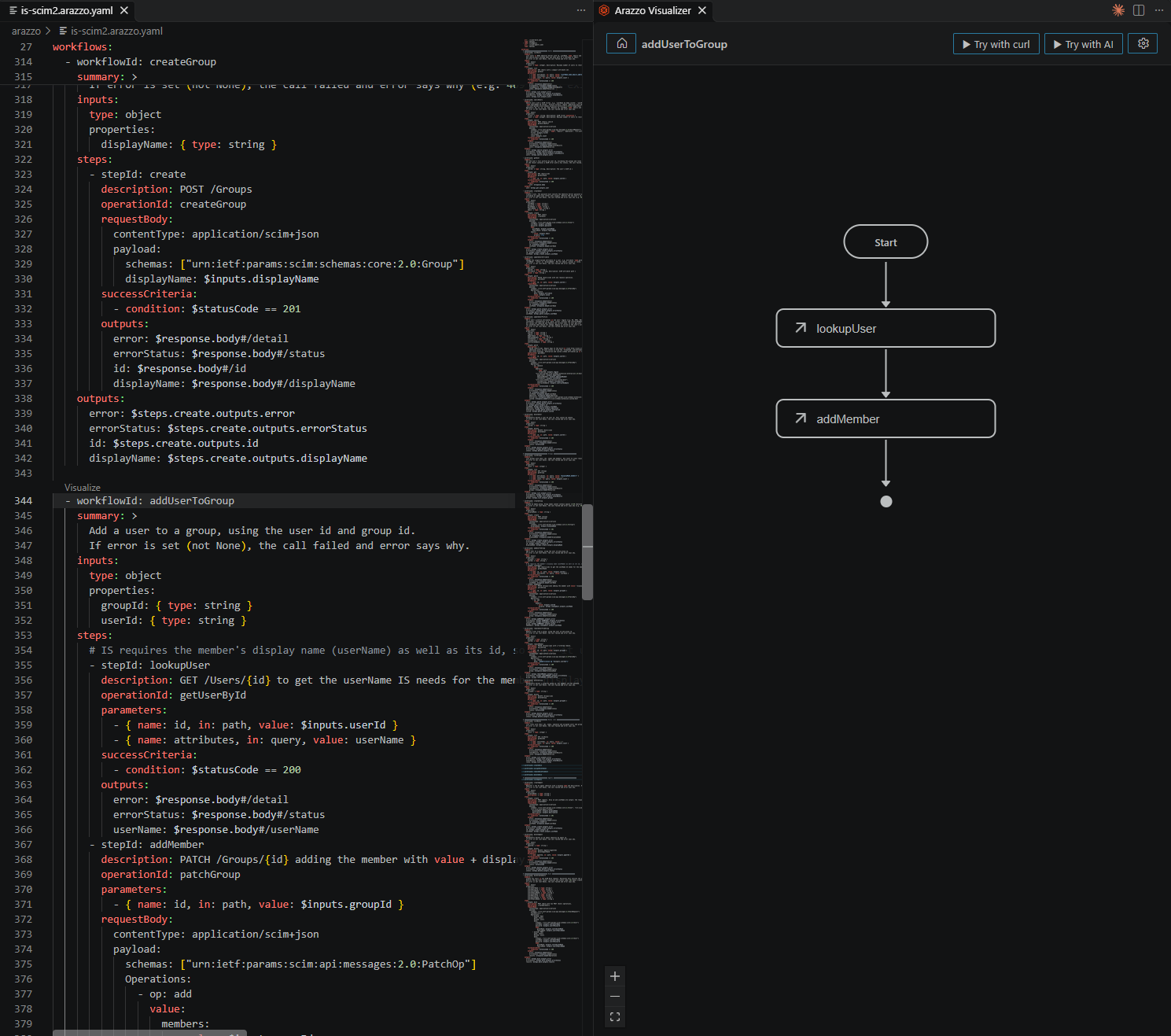
-
Deciding what the LLM sees. Creating an agent returns its generated password in the response. But the
create_agenttool outputs onlyidanduserName($response.body#/id), so the password never enters the LLM’s context.
Map errors into the outputs
IS reports a failed call as a SCIM error body, and the generated tool still returns “Workflow Success” with isError: false. So map the error fields into every workflow’s outputs, as search_users does above:
outputs:
  error: $response.body#/detail
  errorStatus: $response.body#/status
and tell the LLM how to read them in the summary: “If error is set (not None), the call failed and error says why.”
A workflow that returns the whole response body, like get_user, also carries the error:
get_user(userId="0000…")  →  isError: false
Workflow Success. Outputs: {'user': {'schemas': ['urn:ietf:params:scim:api:messages:2.0:Error'],
  'detail': 'User 0000… does not exist in: PRIMARY', 'status': '404'}}
A workflow that maps only selected fields, without error, hides the failure from the LLM. Step 7 shows Claude correcting its own request from one of these errors.
Custom profile attributes
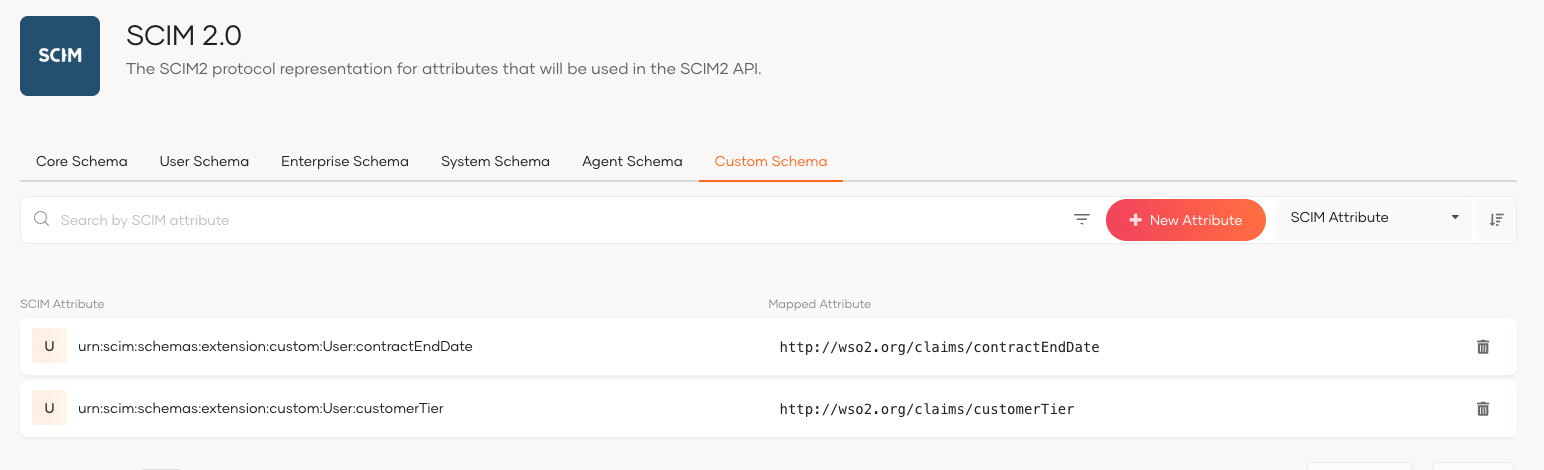
update_user_profile sets standard and custom attributes together. First, add two custom attributes to the IS user profile:
| Attribute | SCIM 2.0 schema |
|---|---|
| customerTier, contractEndDate | urn:scim:schemas:extension:custom:User |
Creating a new attribute in the Console (User Attributes & Stores → Attributes) maps it to the SCIM custom schema:
The update_user_profile tool then updates the user attributes in a single PATCH:
Operations:
  - op: replace
    value:
      addresses:
        - type: work
          formatted: $inputs.region
      "urn:ietf:params:scim:schemas:extension:enterprise:2.0:User":
        department: $inputs.department
        employeeNumber: $inputs.employeeNumber
        costCenter: $inputs.costCenter
      "urn:scim:schemas:extension:custom:User":
        customerTier: $inputs.customerTier
        contractEndDate: $inputs.contractEndDate
list_users and search_users return these attributes, and the search_users description gives the LLM working filter examples for each kind.
addresses.work eq EU
urn:ietf:params:scim:schemas:extension:enterprise:2.0:User:department eq Finance
urn:scim:schemas:extension:custom:User:customerTier eq gold
Generate and run
First validate and inspect the workflows:
arazzo-mcp-gen validate -f arazzo
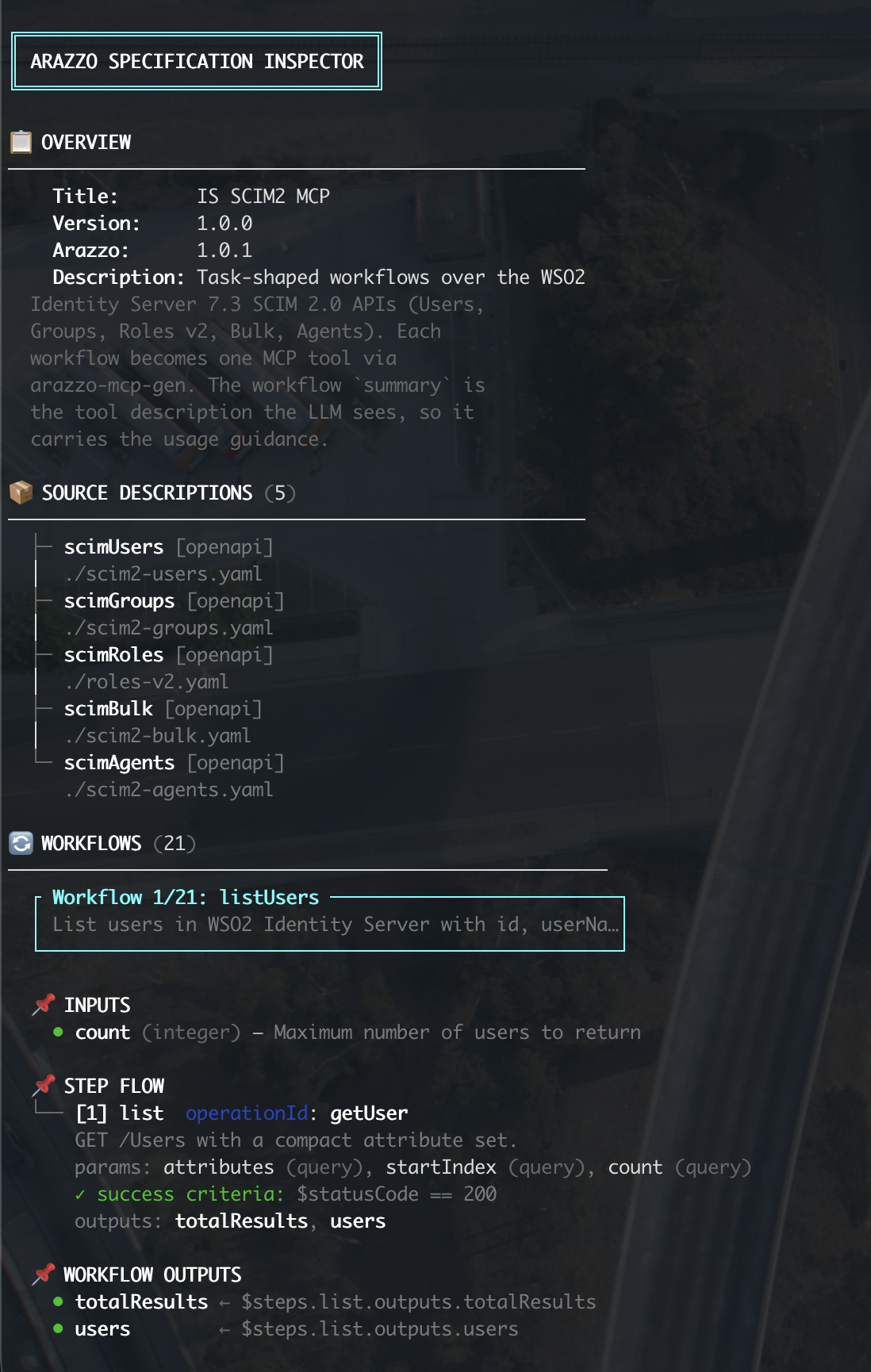
arazzo-mcp-gen inspect -f arazzo
inspect prints a summary of the Arazzo file without generating anything: the source OpenAPI specs, and for each of the 21 workflows its inputs, steps and outputs. Each workflow listed here becomes one MCP tool, so this is a quick check of what the MCP client will get:
Then generate the server and run it. The image is named after the Arazzo info.title value:
arazzo-mcp-gen mcp-server generate -f arazzo -p 5000 -o generated   # also runs docker build

docker run -d --name scim-mcp-server -p 127.0.0.1:5050:5000 \
  -e ARAZZO_DISABLE_TLS_VERIFY=1 \
  -e SCIM_OAUTH2_CLIENT_ID=... -e SCIM_OAUTH2_CLIENT_SECRET=... \
  -e AI_OAUTH2_CLIENT_ID=...   -e AI_OAUTH2_CLIENT_SECRET=... \
  is-scim2-mcp-mcp-server
Both credential pairs are from the SCIM MCP Backend app we created.
Step 4: Put the AI Gateway in front
Setup the AI Gateway distribution first.
ADMIN_USERNAME=admin ADMIN_PASSWORD='<strong-password>' ./scripts/setup.sh
Before starting it, configure the gateway to trust tokens from Identity Server. These settings are system parameters of the mcp-auth policy (v1.4.0), not part of config-template.toml, so append them to configs/config.toml (the snippet is gateway/is-keymanager.toml in the repository):
[[policy_configurations.jwtauth_v1.keymanagers]]
name = "WSO2IS"
issuer = "https://localhost:9443/oauth2/token"      # must equal the token's issuer

[policy_configurations.jwtauth_v1.keymanagers.jwks.remote]
uri = "https://host.docker.internal:9443/oauth2/jwks"  # fetched from inside the container
skipTlsVerify = true                                   # IS self-signed cert, local only

[policy_configurations.mcpauth_v1]
gatewayurl = "https://localhost:8443"
Here, the issuer must match what IS adds in tokens, and the JWKS URL must be reachable from inside the container.
Next we start the gateway and the MCP server:
docker compose up -d
curl -s http://localhost:8080/_gateway-health/healthy   # {"status":"healthy"}
docker network connect <project>_gateway-network scim-mcp-server
The last command puts the generated MCP server on the gateway’s network so the proxy can reach it as http://scim-mcp-server:5000/mcp.
Register the MCP proxy
The gateway only needs to know where the MCP server is. It doesn’t care that REST, OpenAPI or Arazzo sit behind it:
apiVersion: gateway.api-platform.wso2.com/v1
kind: Mcp
metadata:
  name: is-scim2-mcp-v1.0
spec:
  displayName: IS SCIM2 MCP
  version: v1.0
  context: /scim
  specVersions: ["2025-06-18", "2025-11-25"]   # specVersion (singular) is deprecated
  upstream:
    url: http://scim-mcp-server:5000/mcp      # forwarded to exactly this URL
  tools: []
  resources: []
  prompts: []
Make the following request to register the MCP proxy. The full definition, including the policies added in Steps 5 and 6, is gateway/mcp-proxy.yaml:
curl -u admin:<password> -X POST http://localhost:9090/api/management/v1/mcp-proxies \
  -H 'Content-Type: application/yaml' --data-binary @mcp-proxy.yaml      # 201, state: deployed
Clients now connect to https://localhost:8443/scim/mcp.
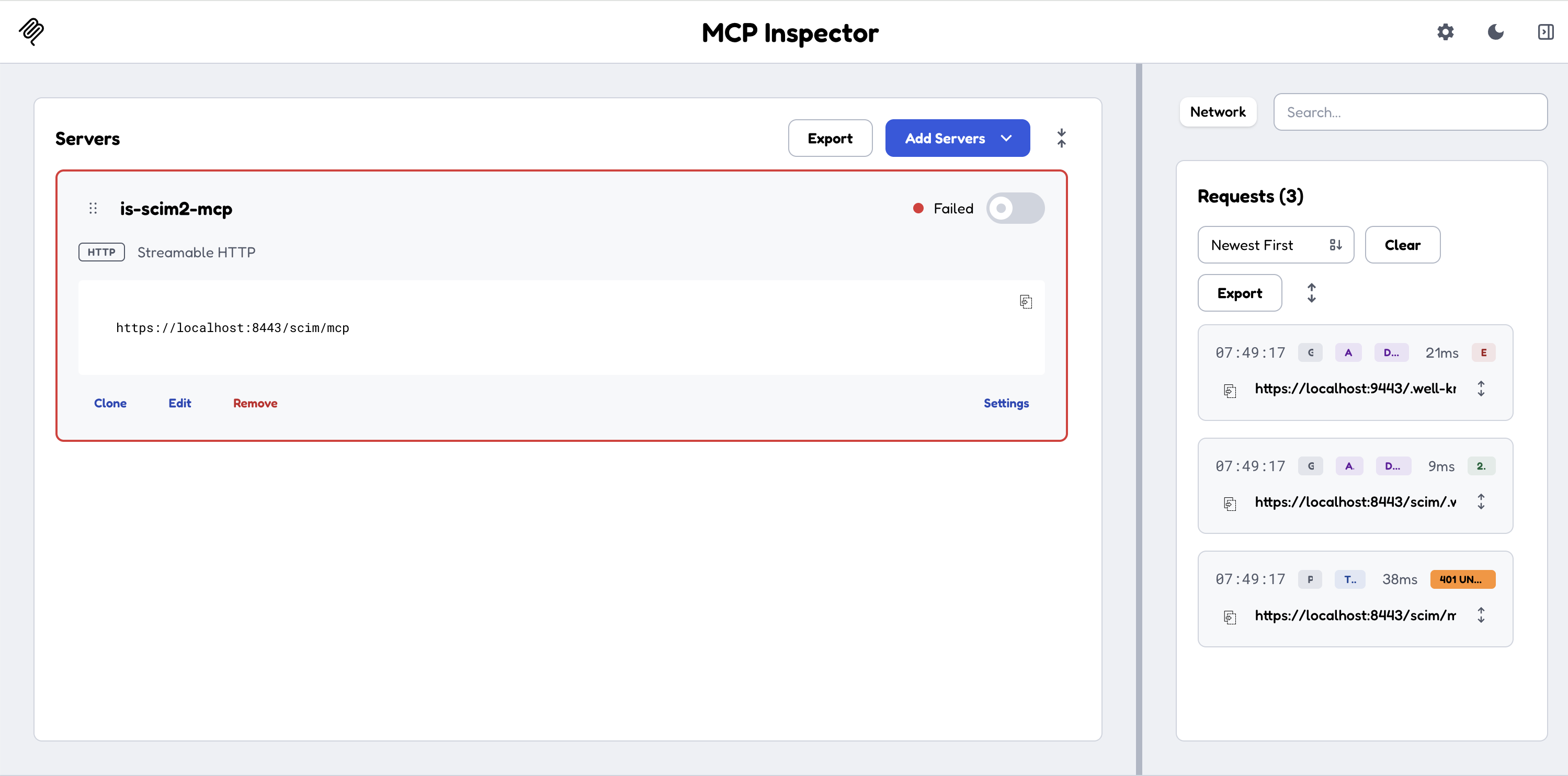
We can use MCP Inspector to list the tools and verify.
To open MCP Inspector against the gateway’s self-signed certificate, you will need to trust that certificate:
NODE_EXTRA_CA_CERTS=resources/listener-certs/default-listener.crt npx @modelcontextprotocol/inspector@2.8.0
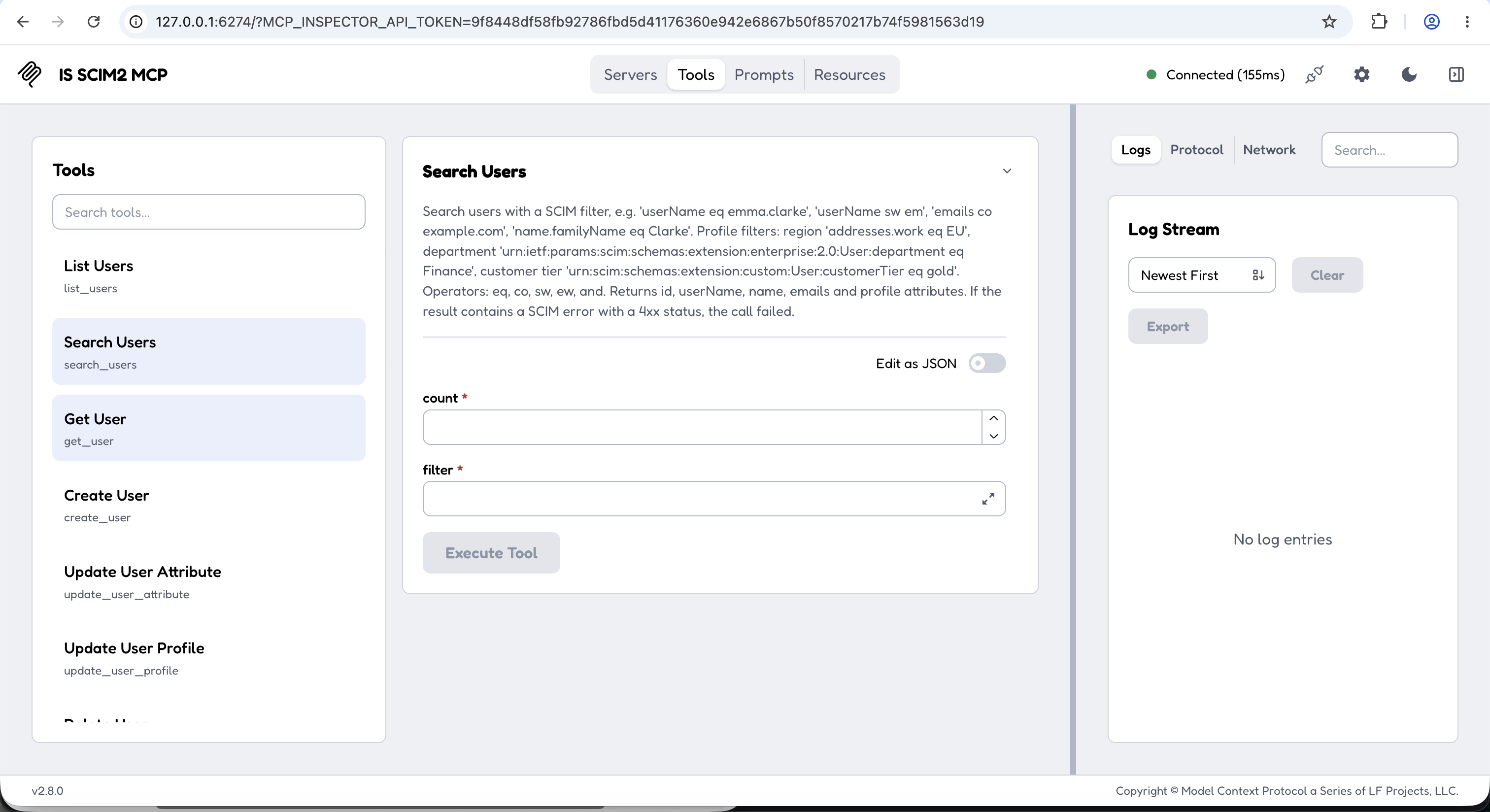
At this point the gateway just a pass-through without any security for the MCP server. Anyone who can reach port 8443 can call the tools. Next steps fix that.
Step 5: Secure it with Identity Server tokens
Adding the mcp-auth policy on the proxy turns the gateway into an OAuth-protected MCP resource that trusts Identity Server:
  policies:
    - name: mcp-auth
      version: v1
      params:
        issuers: [WSO2IS]            # the key manager from config.toml
        audiences:
          - <SCIM MCP Client client_id>
        requiredScopes: [internal_user_mgt_view, …]
Without a token, the gateway answers the way the MCP authorization spec expects:
HTTP/2 401
www-authenticate: Bearer resource_metadata="https://localhost:8443/scim/.well-known/oauth-protected-resource",
                  scope="internal_user_mgt_view internal_user_mgt_list …", error="invalid_token"
GET /scim/.well-known/oauth-protected-resource
{
  "resource": "https://localhost:8443/scim/mcp",
  "authorization_servers": ["https://localhost:9443/oauth2/token"],
  "scopes_supported": ["internal_user_mgt_view", "…"]
}
The authorization server is the key manager’s issuer. IS 7.3 serves RFC 8414 metadata at the path (/.well-known/oauth-authorization-server/oauth2/token), with authorize, token, PKCE and a dynamic client registration endpoint. So the whole discovery chain an MCP client follows resolves against IS.
Set audiences to the SCIM MCP Client app’s client_id. IS puts the client’s client_id in the token’s aud claim, and mcp-auth passes audiences to the underlying jwt-auth policy, which checks it. This is required so that a token from any IS application is not accepted; with this in place, the backend app’s token fails with 401.
In this flow, the caller’s (MCP client’s) token never actually reaches the MCP server. mcp-auth policy defaults to forwardToken: false. That’s the two-identity model we’re using. The AI gateway authenticates the caller, and the MCP server talks to IS with its own credential.
In MCP Inspector, call create_user with a bearer token from the SCIM MCP Client app:
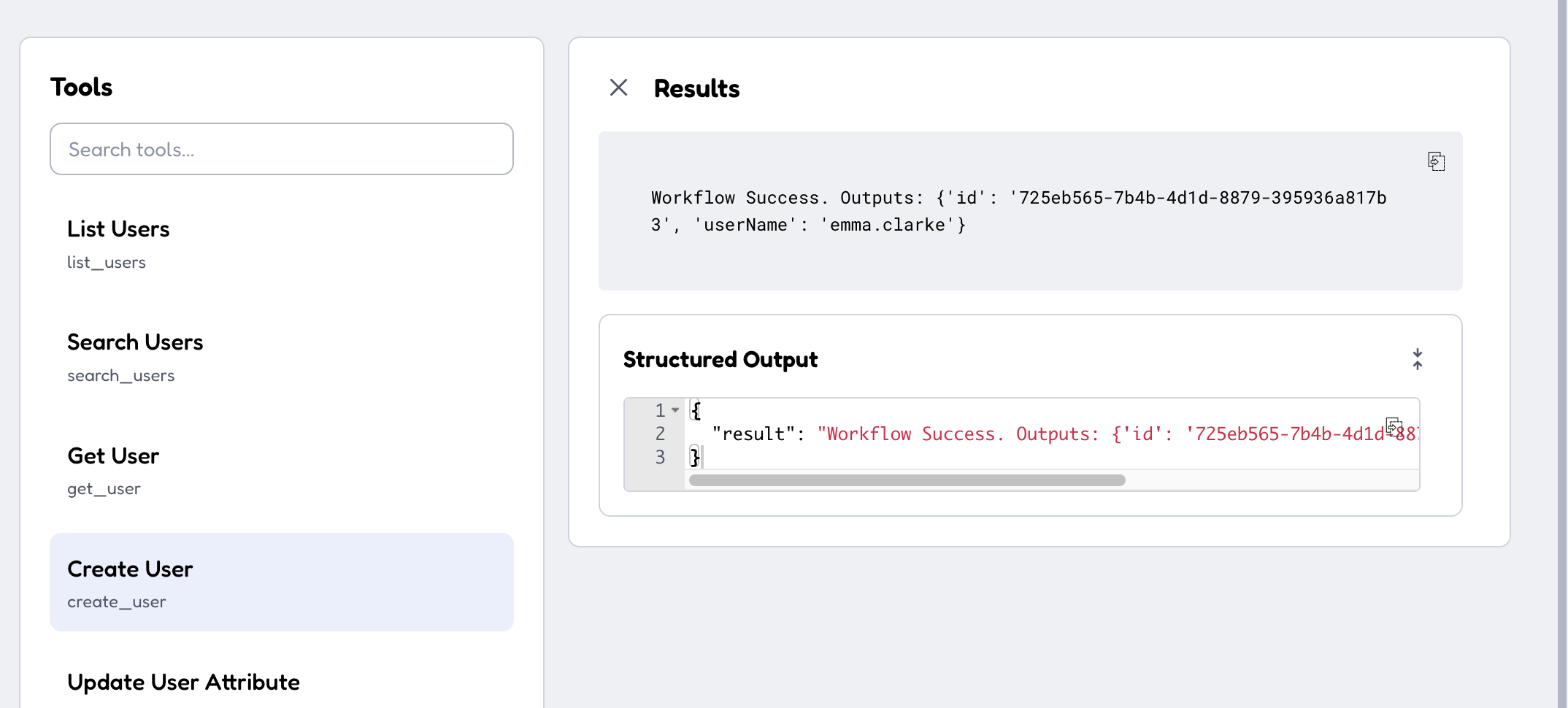
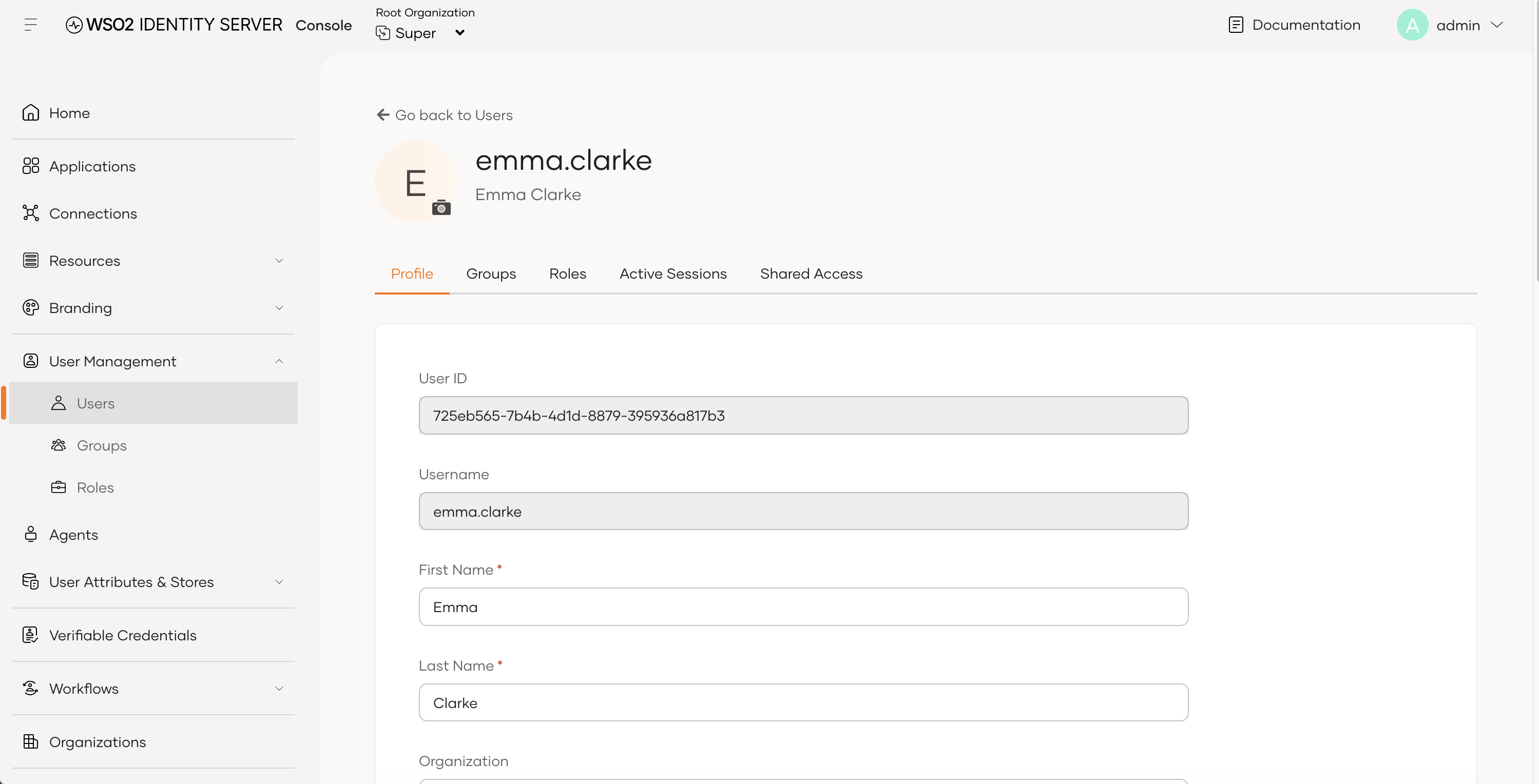
The user appears in the Identity Server Console:
Step 6: Per-tool authorization
Authentication tells the gateway who is calling. mcp-authz decides which tools they may call, using the scopes in the IS token. Each tool is defined with the exact scope IS itself requires for the SCIM operation behind it, so the gateway’s rules and Identity Server’s own API authorization line up:
    - name: mcp-authz
      version: v1
      params:
        tools:
          - name: search_users
            scopes: { allOf: [internal_user_mgt_list] }
          - name: delete_user
            scopes: { allOf: [internal_user_mgt_delete] }
          - name: add_user_to_group          # reads the user, then patches the group
            scopes: { allOf: [internal_user_mgt_view, internal_group_mgt_update] }
          - name: assign_role_to_user
            scopes: { anyOf: [internal_role_mgt_update, internal_role_mgt_users_update] }
          # … one rule for each of the 21 tools
A read-only token (view/list scopes only) can still search for a user, but deleting the user is stopped at the gateway, before the call reaches the MCP server or IS:
HTTP/2 403
www-authenticate: Bearer resource_metadata="…/scim/.well-known/oauth-protected-resource",
                  scope="internal_user_mgt_delete", error="insufficient_scope"
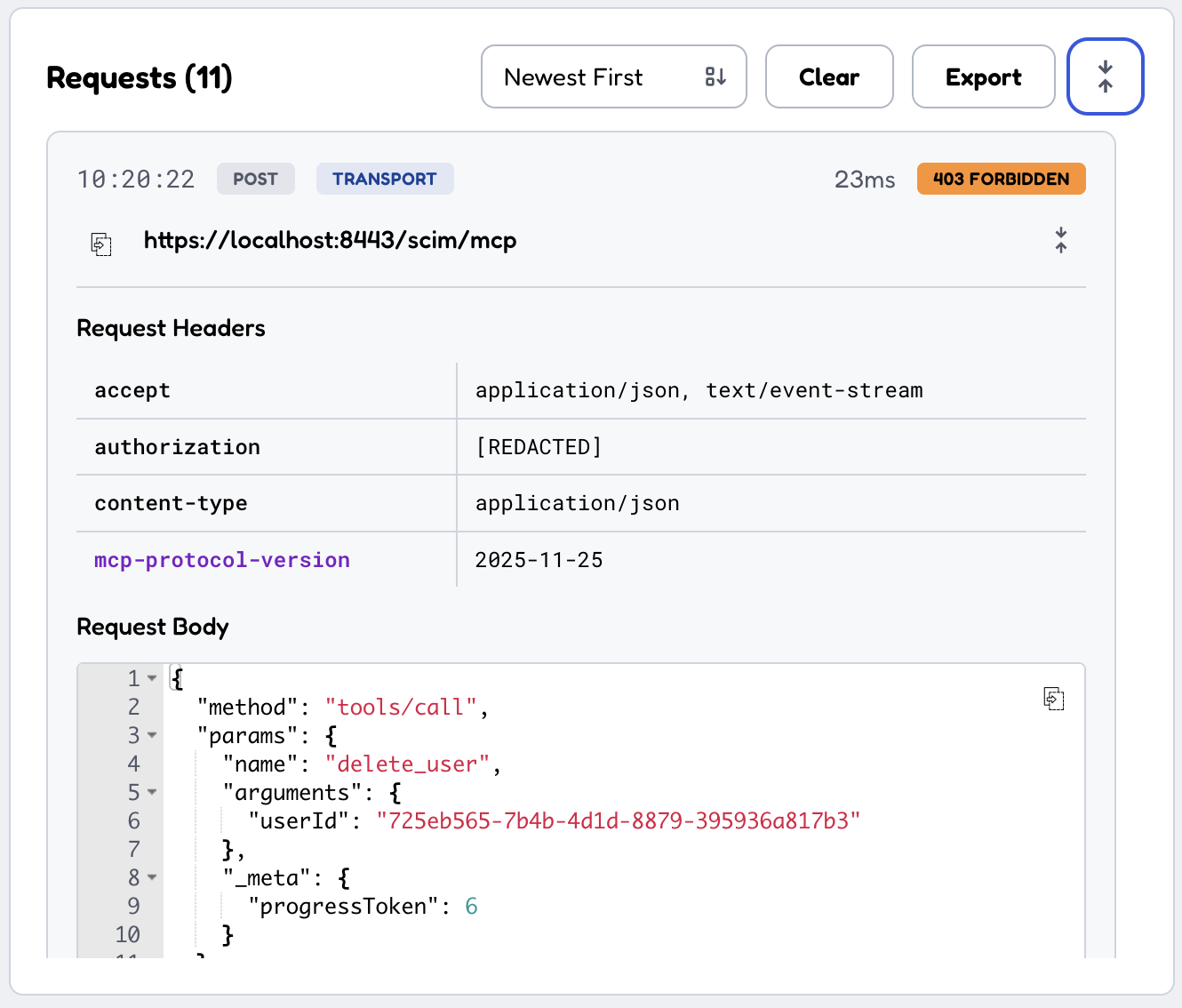
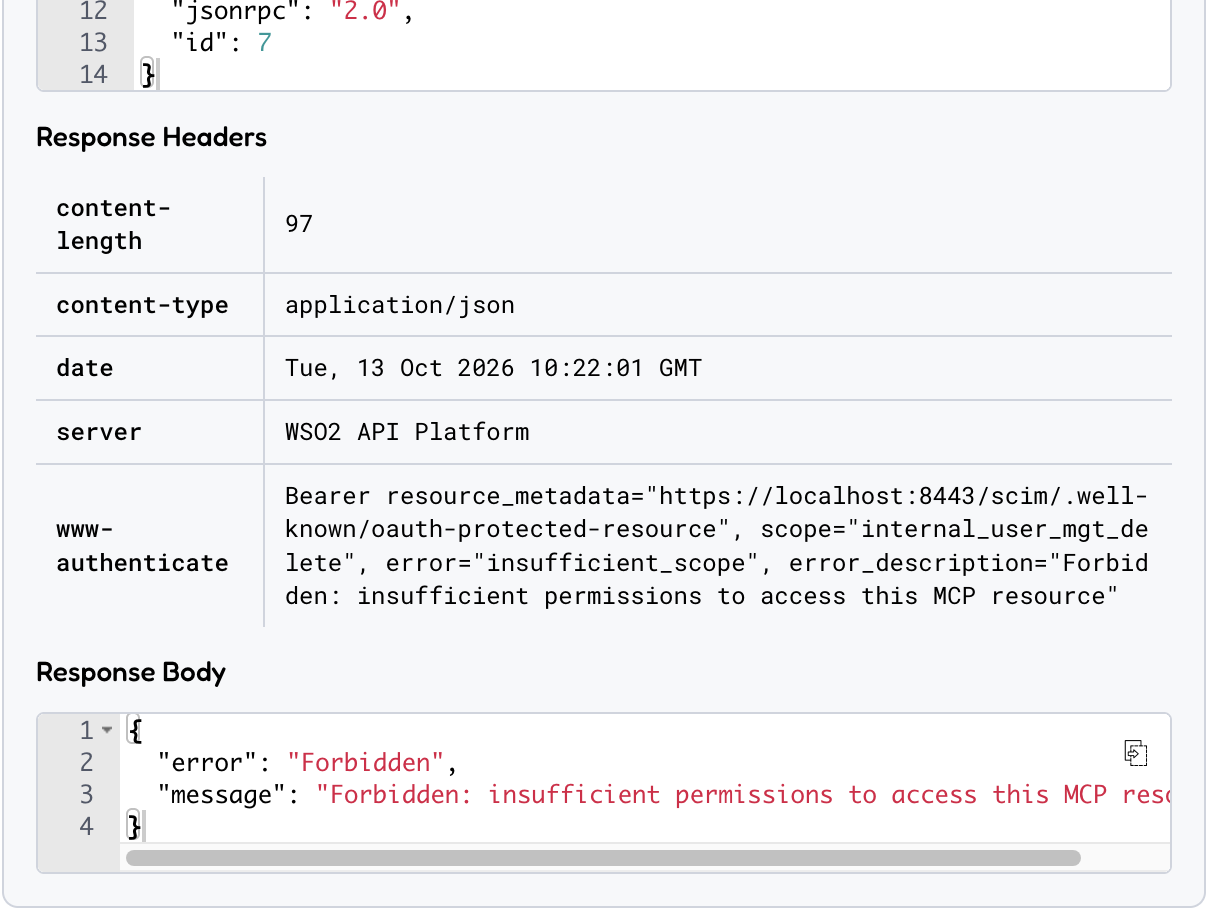
Here, the scope in the www-authenticate challenge names what’s missing, so a client could retry with the missing scope.
How the rules apply to narrower tokens:
| Token scopes | Tool | Result |
|---|---|---|
| View and list scopes only | search_users |
Allowed |
| View and list scopes only | delete_user |
403, missing internal_user_mgt_delete |
internal_group_mgt_update only |
add_user_to_group |
403, missing internal_user_mgt_view |
internal_role_mgt_users_update only |
assign_role_to_user |
Allowed (anyOf rule) |
Step 7: Try it out with the actual MCP client
Claude Desktop runs local MCP servers over stdio, so a small bridge, mcp-remote, connects it to the gateway’s HTTPS endpoint.
My article Testing Your Local MCP Server with Claude Desktop and Claude Code explains how to set up mcp-remote in claude_desktop_config.json, step by step.
The MCP server is configured in the Claude Desktop’s claude_desktop_config.json file as explained in the article.
"mcpServers": {
  "is-scim": {
    "command": "/opt/homebrew/bin/npx",
    "args": ["-y", "mcp-remote@0.14.3", "https://localhost:8443/scim/mcp",
             "--transport", "http-only",
             "--header-file", "/Users/<you>/Library/Application Support/Claude/is-scim-mcp/headers"],
    "env": {
      "NODE_EXTRA_CA_CERTS": "/Users/<you>/Library/Application Support/Claude/is-scim-mcp/gateway-listener.crt",
      "PATH": "/opt/homebrew/bin:/usr/bin:/bin"
    }
  }
}
Note the following:
- The token lives in a header file, not in the config.
--header-filekeeps it out of the config and out of the process list. - The gateway certificate should be trusted with
NODE_EXTRA_CA_CERTS, which points to a copy of the gateway’s listener certificate, instead of turning off TLS checks withNODE_TLS_REJECT_UNAUTHORIZED=0. mcp-remoteversion is pinned
After restarting Claude Desktop, the 21 tools will show up in the tools menu:
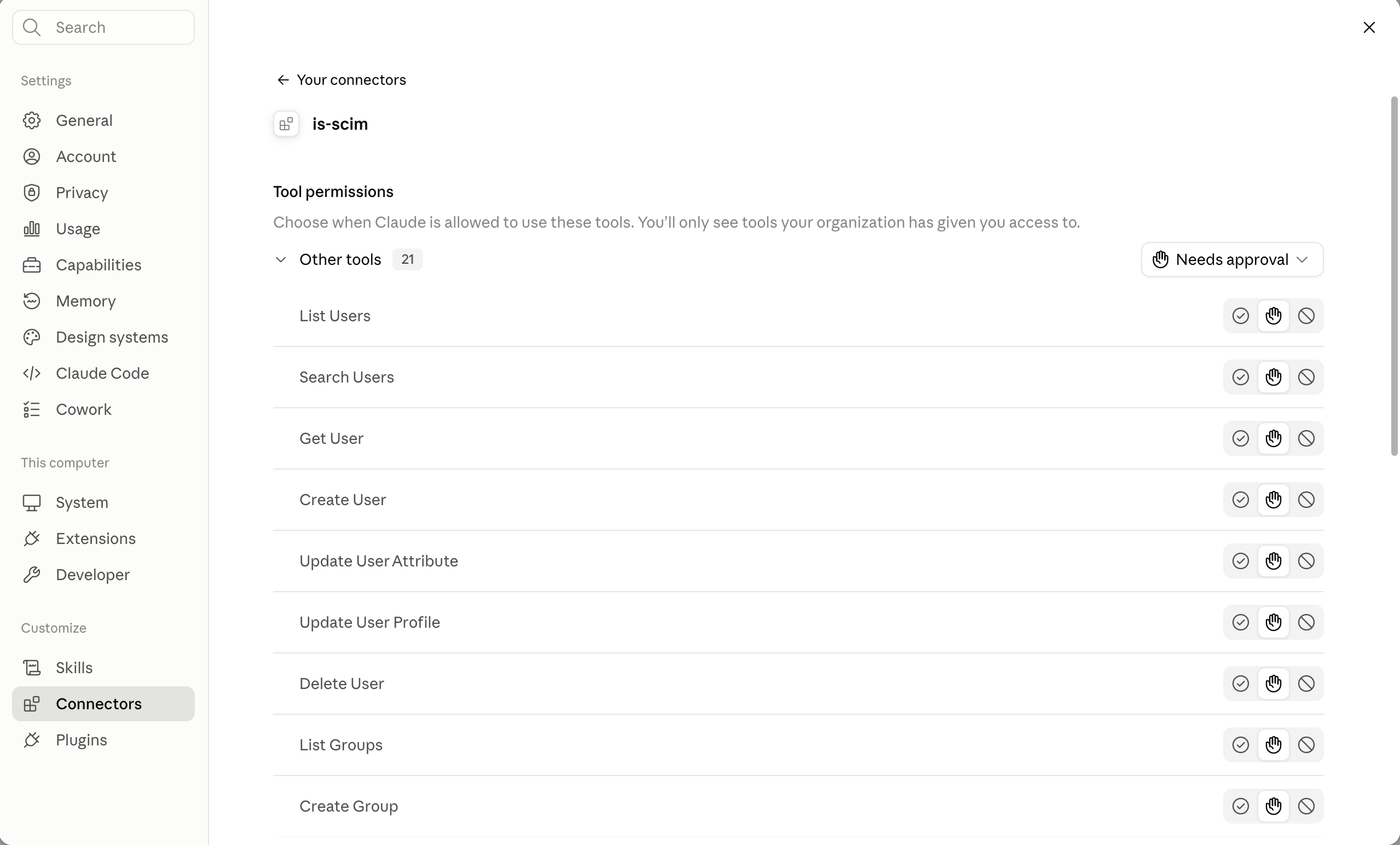
Sample prompt to try in Claude Desktop:
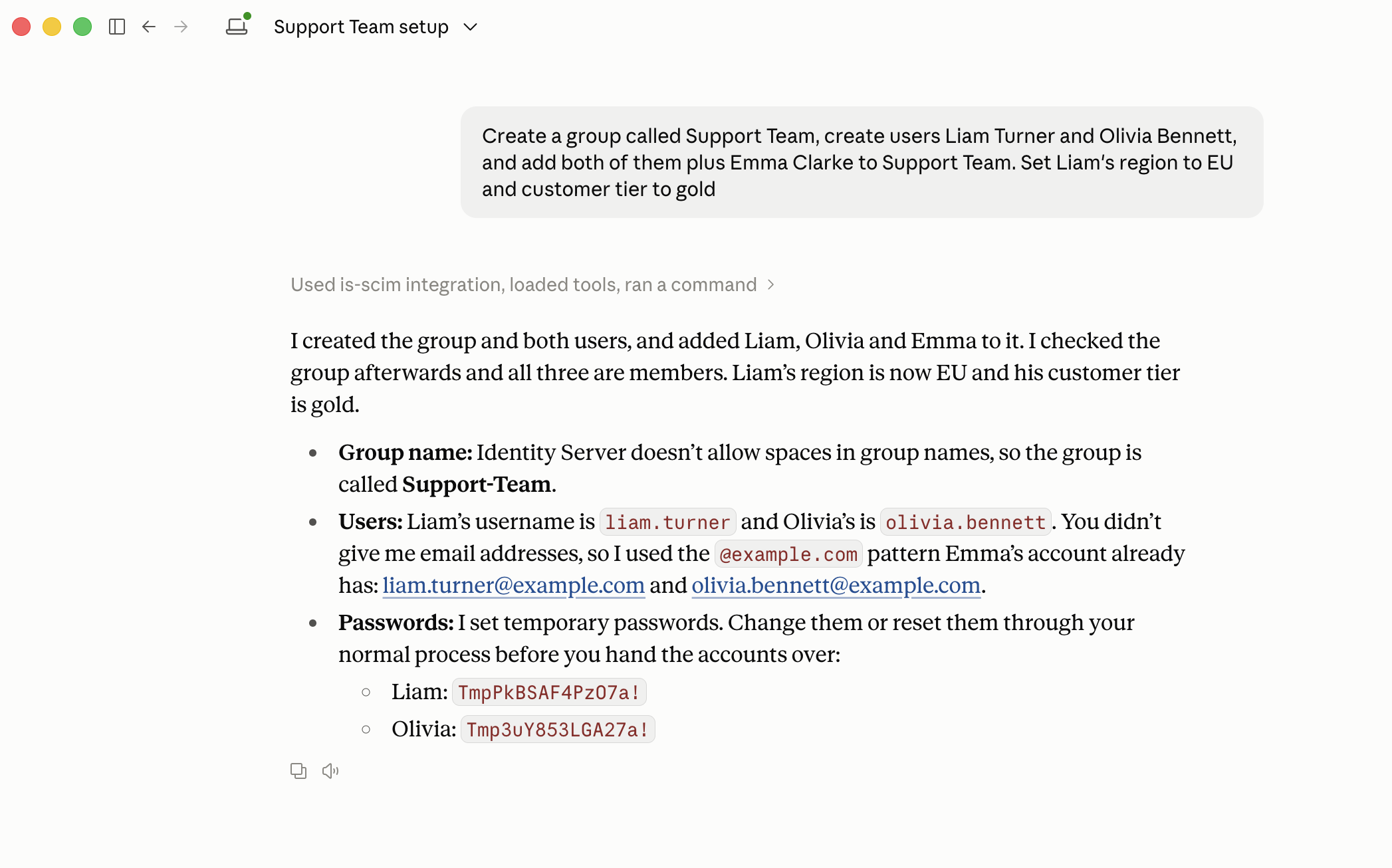
Create a group called Support Team, create users Liam Turner and Olivia Bennett, and add both of them plus Emma Clarke to Support Team. Set Liam’s region to EU and customer tier to gold.
Claude got the error: "Group name Support Team is not valid … ^[\S]{3,30}$" and chose to use Support-Team instead. Claude could correct the request only because create_group maps the error into its outputs.
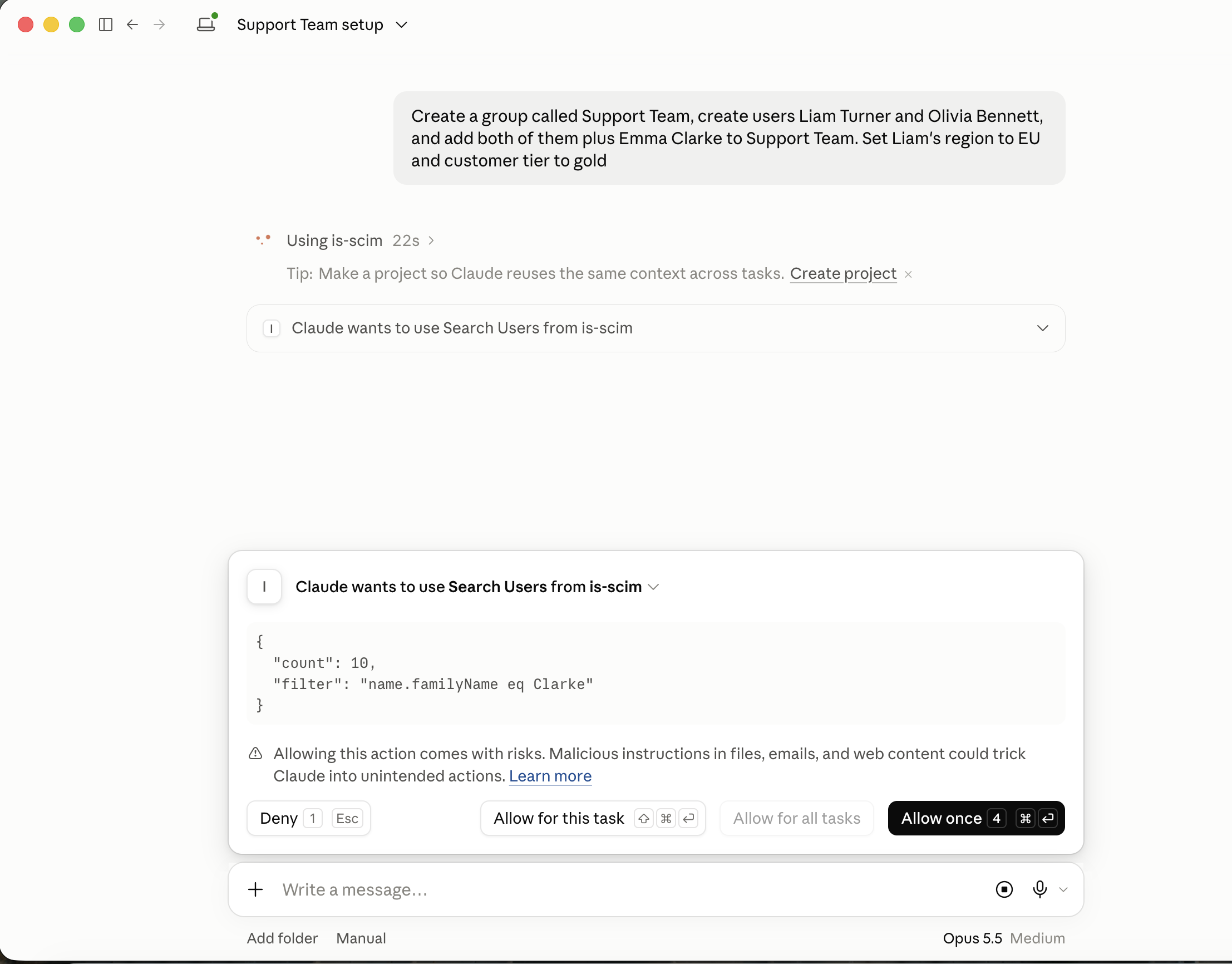
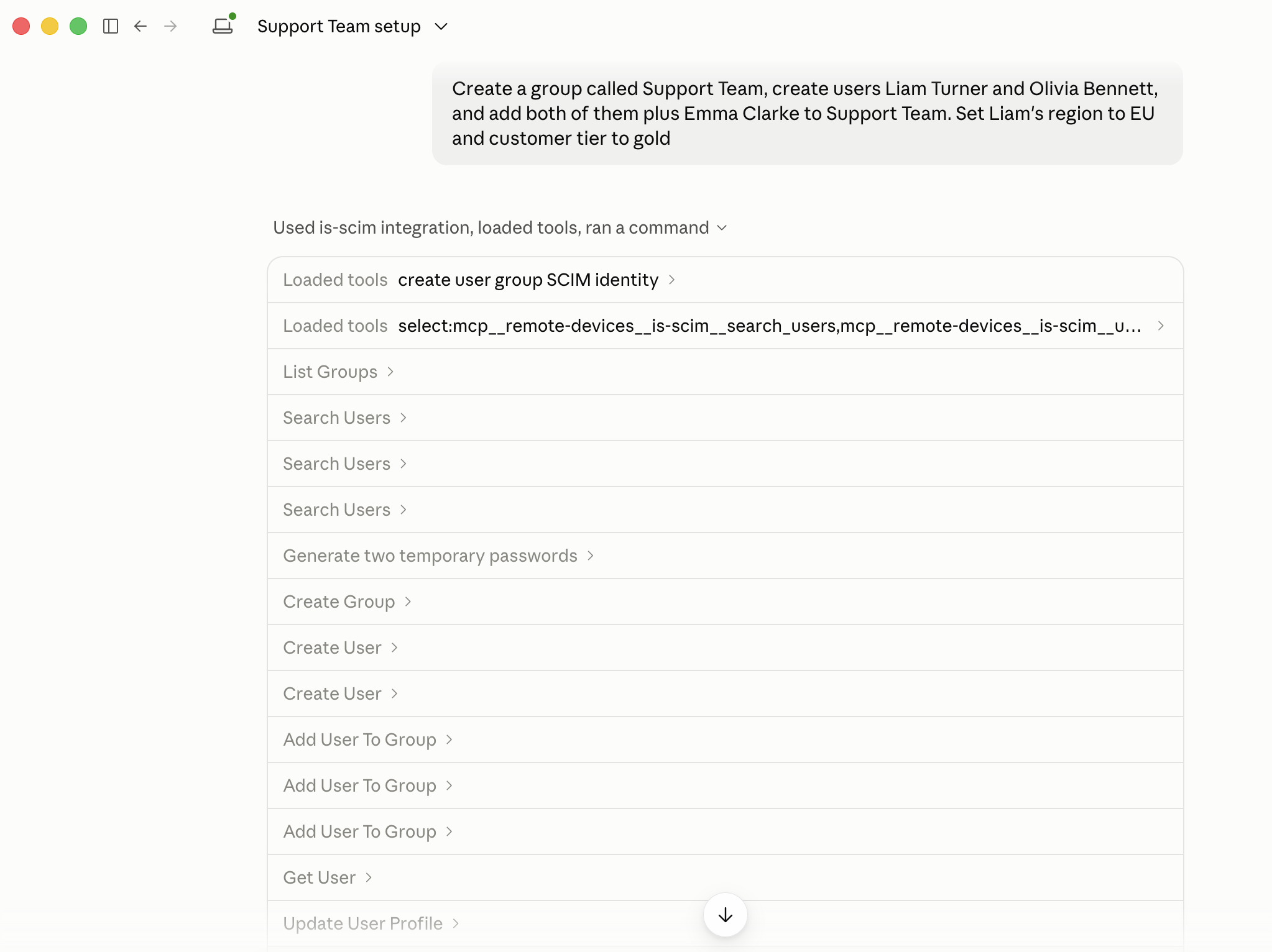
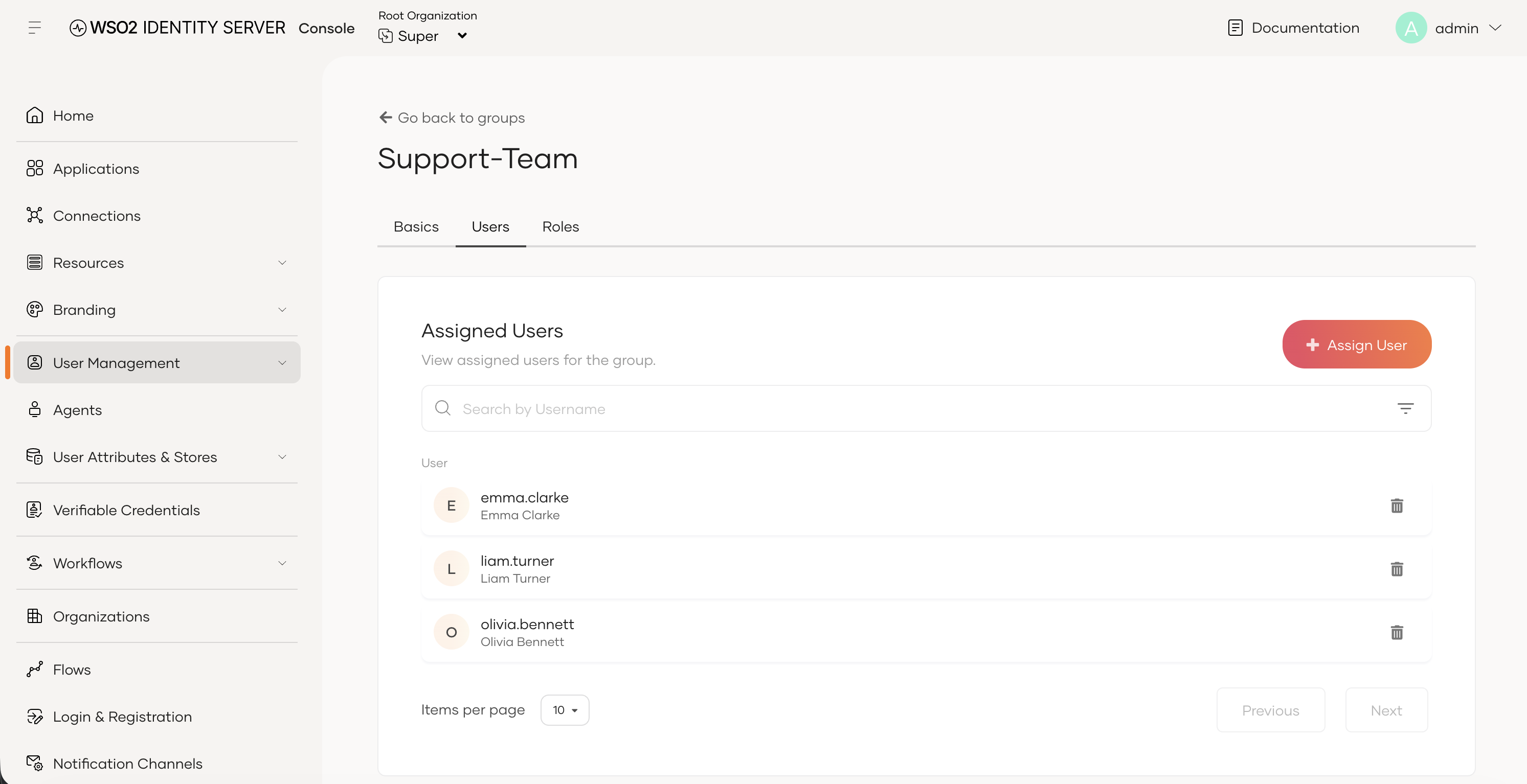
Now the group and users are in Identity Server, and Liam’s profile has region EU and customerTier: gold.
Conclusion
We exposed the SCIM 2.0 APIs of WSO2 Identity Server as 21 MCP tools without writing a server: arazzo-mcp-gen generated it from the IS OpenAPI specs and an Arazzo file. The WSO2 AI Gateway in front of it accepts only Identity Server tokens issued to the SCIM MCP Client app, and allows each tool only when the token carries the IS scope that the tool’s SCIM operation needs. Claude Desktop then managed users and groups from plain natural language requests, within those limits.
The gateway governs the MCP server but doesn’t create it; the Arazzo file is where the tool design lives. Three points from that design apply to any REST API you expose this way:
- Design tools for the model, not for the API. Task-shaped tools such as
add_user_to_groupandupdate_user_profilehide the SCIM PATCH syntax, memberdisplayvalues and URN-qualified attribute names. Thesummaryis the only documentation the model gets, so put examples and constraints there. - Map errors into the outputs. Failed calls can still report “Workflow Success”, so the model sees why a call failed only if the outputs include the error.
- Return only what the model needs.
create_agentmaps onlyidanduserName, so the generated password never reaches the LLM.
Plan around the current Arazzo limits: object and array inputs are passed as plain strings, all inputs are required, and results come back as a stringified Python dict, not JSON.
What’s next
- Interactive OAuth instead of pasted tokens. The gateway uses Identity Server as the authorization server, and an MCP client that does the full OAuth flow could sign the user in, rather than pasting an M2M token. This needs an application in IS that supports the authorization code flow with PKCE, because our M2M application supports only client credentials. The gateway checks the token the same way whatever the grant type, but IS grants only the scopes the signed-in user’s roles allow, so per-tool access can follow each user’s own permissions. Identity Server would still see every call as the SCIM MCP Backend app, because the user’s token stops at the gateway (
forwardToken: false).