To wrap or not to wrap
To wrap or not to wrap, that is the Angular question
Should you write a wrapper layer for UI components in your Angular project?

Introduction
A complex Angular application can not possibly exist without using components from third-party UI libraries. But using these libraries comes with its own set of challenges:
- While these libraries can provide different components with different features, the APIs of these components can be very different from each other.
- A common observation is how the APIs of a component can change between versions of the library, which can be a headache for a large scale Angular project when upgrading the library.
- Some libraries may not provide all the components you need, or the components may not be flexible enough to meet your requirements.

In an Angular project that I worked a while back, we had few requirements to use third-party UI libraries to build components in the application. When analyzing the available libraries, I realized that there was no “one for all” UI library that could satisfy all of the complex requirements of the application.
For example, I really liked the text input and related components provided by Angular Material, but the table component of Angular Material was not nearly good enough for the use cases of the application. On the other hand, the table component of PrimeNG provided most of the complex features that we needed.
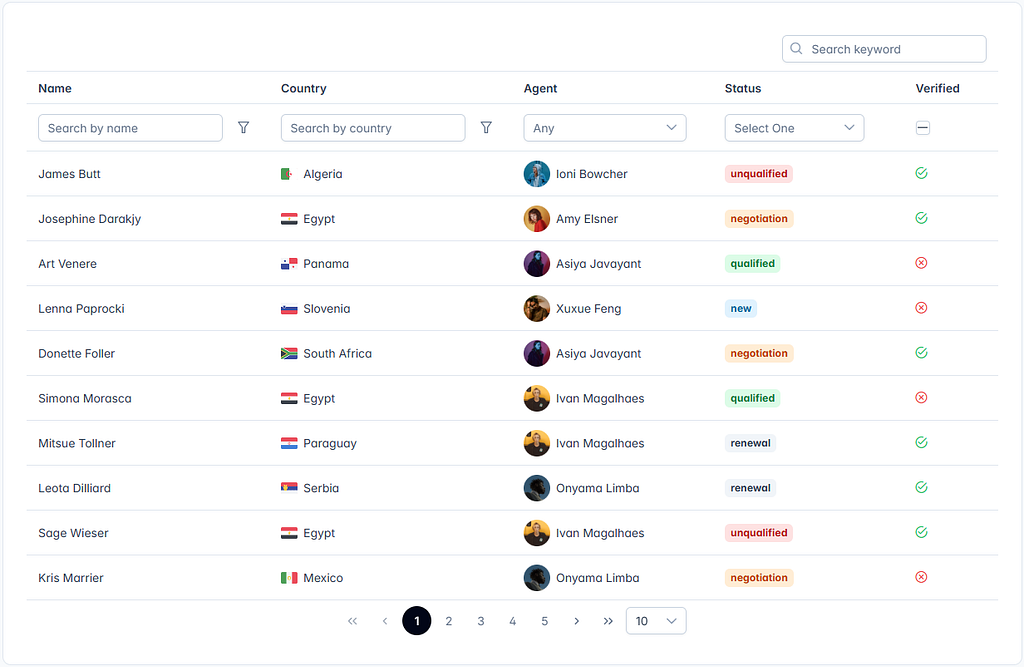
Because of this, I looked in to the possibility of using both UI libraries in the application.
This is discouraged in some cases, since it can lead to compatibility issues between the libraries, and because it can bloat the application with multiple libraries. Nevertheless, let me walk you through how we managed to achieve this in our application.

What did I do
What would our components look like if we used both Angular Material and PrimeNG components in the same application?
Our template would contain components from both libraries here and there. For example, the user’s profile page would have a text input from Angular Material, while the user will be shown a dropdown from PrimeNG to select their country. Next we might have a button from Angular Material to save the profile, and a table from PrimeNG after that.
<mat-form-field>
 <mat-label>Username</mat-label>
 <input matInput placeholder="Enter your username" />
</mat-form-field>

<p-dropdown [options]="countries" placeholder="Select a country"></p-dropdown>

<button mat-raised-button color="primary">Save Profile</button>

<p-table>
 ...
</p-table>
This does not look good.
To solve this, I created a common wrapper layer for the UI components that we use. These wrapper components are built on top of the third-party UI components, and they provide a consistent API that we can use throughout the application.
With this approach, the project structure will look like this:
- app
 - core
 - features
 - user-profile
 - shared
 - abc-text-field
 - abc-card
 - abc-table
For example, I created a wrapper component for text fields that use the text input component from Angular Material under the hood. When we need to use a text field in the application, we used the wrapper component instead of directly using the Angular Material text input.
<mat-form-field [appearance]="appearance" subscriptSizing="dynamic">
 @if (label) {
  <mat-label></mat-label>
 }
 <input
 #textInput
 type="text"
 matInput
 [attr.maxlength]="maxlength"
 [autocomplete]="autocomplete ? 'on' : 'off'"
 (input)="onInputEvent($event)"
 [mask]="mask"
 [placeholder]="placeholder"
 (keydown.enter)="keydownEnter.emit()"
 [attr.disabled]="disabled ? true : null"
 (keydown.backspace)="keydownBackspace.emit($event)"
 [value]="value"
 [required]="required"
 (blur)="onBlur.emit($event)"
 [readonly]="readonly"
 />
 @if (hint) {
  <mat-hint></mat-hint>
 } @else if (error) {
  <mat-error></mat-error>
 }
</mat-form-field>
@Component({
 selector: "abc-text-field",
 templateUrl: "./abc-text-field.component.html",
 styleUrls: ["./abc-text-field.component.scss"],
})
export class AbcTextFieldComponent {
 @Input() appearance: "fill" | "outline" = "outline";
 @Input() placeholder: string;
 @Input() inputFormControl: FormControl;
 @Input() hint?: string;
 @Input() error?: string;
 @Input() label?: string;
 @Input() required: boolean = false;
 @Input() maxlength: string;
 @Input() autocomplete: boolean;
 @Input() disabled = false;
 @Input() mask: string;
 @Input() readonly: boolean = false;

 @Output() keydownEnter = new EventEmitter();
 @Output() keydownBackspace = new EventEmitter();
 @Output() onInput = new EventEmitter<any>();
 @Output() onBlur = new EventEmitter<any>();

 @ViewChild("textInput", { static: false }) textInput!: any;

 onInputEvent(event: any) {
  this.onInput.emit(event);
 }

 focus() {
  if (this.textInput) {
    this.textInput.nativeElement.focus();
  }
 }
}
This way, I could ensure that the text fields were consistent across the application and allowed to add additional functionality like labels, validation messages and formatting that can be reused across the application without duplicating.
More importantly, I had the flexibility to change the underlying component in the future without affecting the whole application.
Another example is this card component that was built on top of Angular Material’s card component. It can be used to display content in a card format, and it provides a consistent API for the card’s header, content, and actions passed through a template reference.
<mat-card [ngClass]="cardClass">
 @if (isLoading) {
  <mat-progress-bar></mat-progress-bar>
 }
 @if (showHeader) {
 <mat-card-header [ngClass]="headerClass">
  <div>

  </div>
 </mat-card-header>
 }
 @if (showContent) {
  <mat-card-content [style.padding.px]="padding">
    <ng-content></ng-content>
  </mat-card-content>
 }
 @if (actionTemplate) {
  <mat-card-actions [ngClass]="actionClass">
    <ng-container *ngTemplateOutlet="actionTemplate"></ng-container>
  </mat-card-actions>
 }
</mat-card>
@Component({
 selector: 'abc-card',
 templateUrl: './abc-card.component.html',
 styleUrls: ['./abc-card.component.scss']
})
export class AbcCardComponent {
 @Input() isLoading = false;
 @Input() cardClass!: string;
 @Input() showHeader = true;
 @Input() showContent = true;
 @Input() headerClass!: string;
 @Input() actionClass!: string;
 @Input() cardTitle!: string;
 @Input() padding;
 @ContentChild('actionTemplate') actionTemplate: TemplateRef<ElementRef>;
}
We could use the abc-card component in our application anywhere we needed a card, and it made our code cleaner and more maintainable. If we ever needed to change the underlying component, we could just change the wrapper component without affecting the whole application.
I also created a wrapper for the table component that used PrimeNG’s table component under the hood. Building this component was a bit more complex, as it needed to handle sorting, filtering, and pagination as well. However, the goal was the same, providing a consistent API for the table component that would be used throughout the application.
<p-table
 #table
 [value]="items"
 dataKey="id"
 [rows]="5"
 [rowsPerPageOptions]="[5, 10, 20]"
 [loading]="isLoading"
 [lazy]="true"
 [totalRecords]="totalRecords"
 (onLazyLoad)="_onLazyLoad($event)"
 >
 <ng-template #header>
 <tr>
 @for (column of tableSettings.columns; track column) {
  <th>
    <p-columnFilter
    [type]="column.type"
    [field]="column.field"
    [placeholder]="column.header"
    matchMode="contains"
    (input)="filterTable($event.target, column.field)"
    ></p-columnFilter>
  </th>
 }
 </tr>
 <tr>
 @for (column of tableSettings.columns; track column) {
  <th [pSortableColumn]="column.field">

    <p-sortIcon [field]="column.field" />
  </th>
 }
 <th>Actions</th>
 </tr>
 </ng-template>
 <ng-template #body let-item>
  <tr>
  @for (column of tableSettings.columns; track column) {
    <td>

    </td>
  }
  <td class="text-center">
    <button (click)="tableSettings.editAction ? tableSettings.editAction(item) : null" mat-button>
      <mat-icon>edit_outline</mat-icon>
    </button>
    <button (click)="tableSettings.deleteAction ? tableSettings.deleteAction(item) : null" mat-button>
      <mat-icon>delete_outline</mat-icon>
    </button>
  </td>
</tr>
 </ng-template>
 <ng-template #emptymessage>
  <tr>
    <td [colspan]="colSpan">No records found</td>
  </tr>
 </ng-template>
</p-table>
@Component({
 selector: "abc-table",
 templateUrl: "./abc-table.component.html",
 styleUrls: ["./abc-table.component.scss"],
})
export class AbcTableComponent implements OnChanges, OnDestroy {
 @Input() tableSettings: TableSettings;
 @ViewChild("table") table: Table;

 totalRecords: number = 0;
 items: any[];
 isLoading = false;

 clear() {
  this.table.clear();
 }

 refresh() {
  this._onLazyLoad(this.table.createLazyLoadMetadata());
 }

 _onLazyLoad(event: any) {
  this.isLoading = true;
  this.tableSettings.dataService.getData(event).subscribe({
    next: (response) => {
      this.items = response.items;
      this.totalRecords = response.totalRecords;
      this.isLoading = false;
    },
    error: () => {
      this.isLoading = false;
    },
  });
 }

 filterTable(target: EventTarget | null, field: string) {
  this.filter(
  target instanceof HTMLInputElement ? target.value : target,
  field,
  "contains"
  );
 }

 filter(value: any, field: string, matchMode: string): void {
  if (this.table) {
    this.table.filter(value, field, matchMode);
  }
 }

 reset() {
  this.table.reset();
 }
}
export interface TableSettings {
 dataService: any; // Service to fetch data
 columns: TableColumn[];
 editAction?: (item: any) => void;
 deleteAction?: (item: any) => void;
}

export interface TableColumn {
 field: string;
 header: string;
 type?: "text" | "number" | "date";
}
This abc-table component made our life easier when building different pages in the application that required a table. It provided a robust table component with sorting, filtering, and pagination capabilities, while allowing us to use the same API across the application. Additionally, the modular design provided by PrimeNG allowed me to import only the necessary modules for the table component, keeping the application lightweight and avoiding conflicts.
We could just pass the TableSettings object to the component, and it would handle the rest. The component would take care of sorting, filtering, and pagination, given that the properties were set correctly.
When to do this?
This approach is useful when:
- You have a complex Angular application that requires multiple UI components from different libraries.
- You want to reuse the same UI components across different parts of the application.
- You want to be able to make changes to the UI components later without affecting the whole application.
- You need to implement custom business logic for the UI components used across the application.
- You want to have more control over the UI components and their APIs.
However, this approach may not be suitable when the application is small and does not have advanced UI requirements. You don’t need to add unwanted complexity to the application. You can use a single UI library that provides all the components you need and use them directly.

In conclusion, creating a wrapper layer for UI components in a complex Angular project can make it easier to manage and maintain the application. It will ensure consistency across the application and allow more flexibility for changes in the future.
This approach can be particularly useful when using components from multiple UI libraries that have different APIs. However, it is important to consider whether this approach is necessary for an application before implementing, as it can add complexity and overhead.
Thanks for reading!